Main Screen
In This Topic
Once you select a new or existing drawing to work on from the Start Screen, the main screen of the MyDraw application will appear:
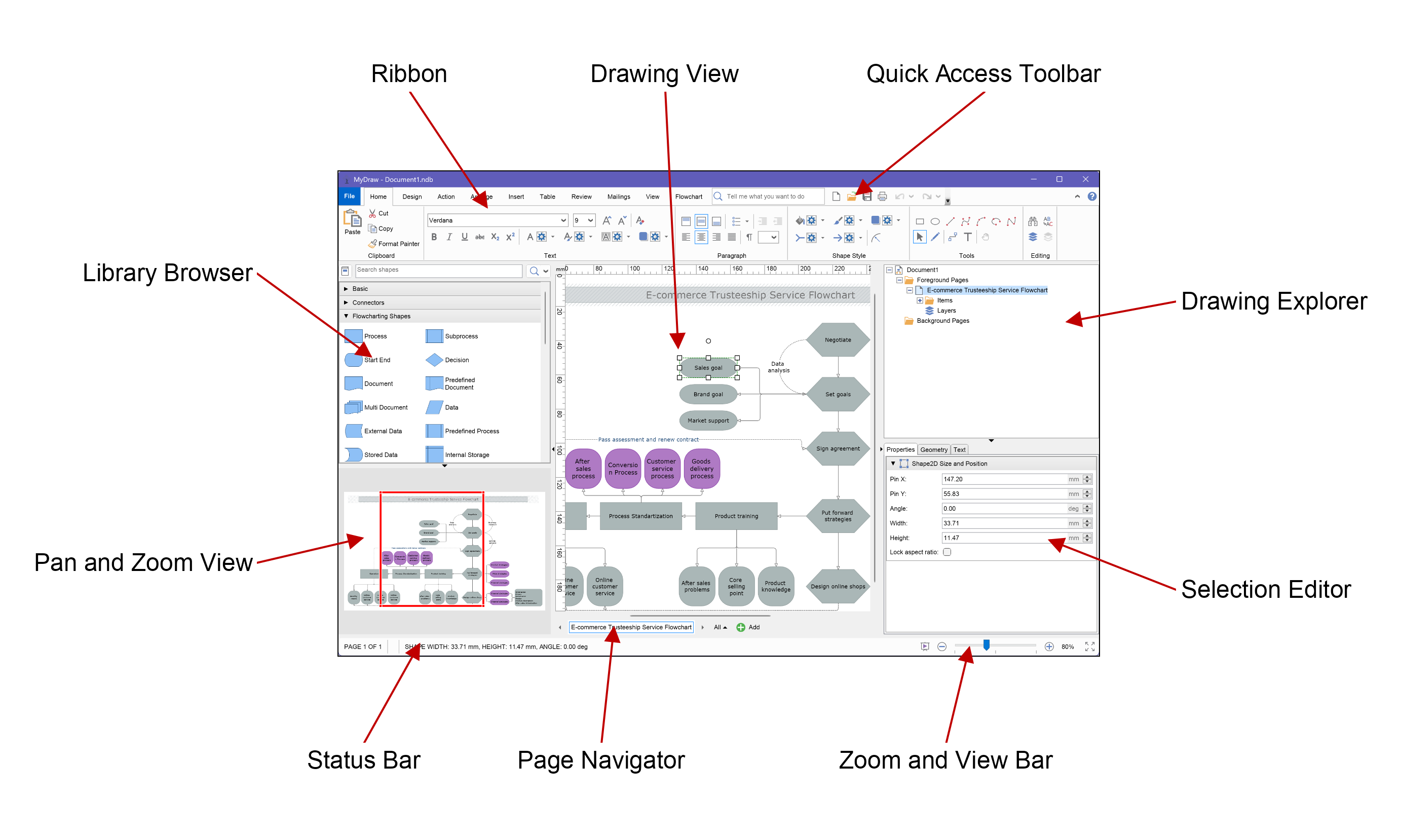 The main screen consists of the following components (in clockwise order):
- Ribbon - this is a Microsoft Office-like command interface through which you can switch the currently active tools, perform formatting and arrangement commands, etc.
- Drawing View - this is the main working area of the application, where you can view and edit the currently opened drawing.
- Quick Access Toolbar - contains commands that you frequently use. You can customize it (add or remove commands) according to your preferences.
- Drawing Explorer - provides a hierarchical tree view of the current drawing structure, allowing you to locate and manage hidden elements such as sub-shapes, layers, etc.
- Selection Editor - provides quick access to the properties of the currently selected shape(s) and allows for their instant formatting.
- Zoom and View Bar - provides a quick way to zoom the drawing to a custom or predefined zoom percentage and start the Presentation Mode.
- Page Navigator - provides a convenient overview of all pages in a drawing, allowing you to quickly navigate, organize, and manage multi-page diagrams.
- Status Bar - shows the current mouse position and basic size information about the currently selected object(s).
- Pan and Zoom View - provides you with a bird’s-eye view of your diagram and lets you instantly see the portion of the drawing currently displayed in the drawing view, while visually helping you zoom and navigate to the desired area.
- Library Browser - provides you with a convenient way to explore, search, and access shape libraries, letting you quickly find and add the elements you need to your diagrams.