As shown in the image above, from the New tab you can create a new Blank Drawing (a drawing without any content and with default settings), or a new drawing based on a predefined template. By using the New from Existing command you can create a new drawing, that is an exact copy of an existing drawing file. In this way you can create your own template files, that you can later reuse as base.
The templates of MyDraw are hierarchically organized in categories that you can interactively browse to select a template with the help of the Template Picker. You can navigate inside a specific category of templates by clicking on the category (drill-down). Your current path inside the template hierarchy is shown in the Template Picker Breadcrumb (located above the template picker).
Additionally from the Search tab you can search for templates. Simply start typing in the search box, and you will see a list of matching templates. To open any templates in the list, click the left mouse button or select it with the arrow keys and press Enter.
Start Screen
In This Topic
When you first start MyDraw, the Start Screen will appear. On its left side, below the MyDraw logo there are three tabs (New, Recent and Open) that are explained in this topic:
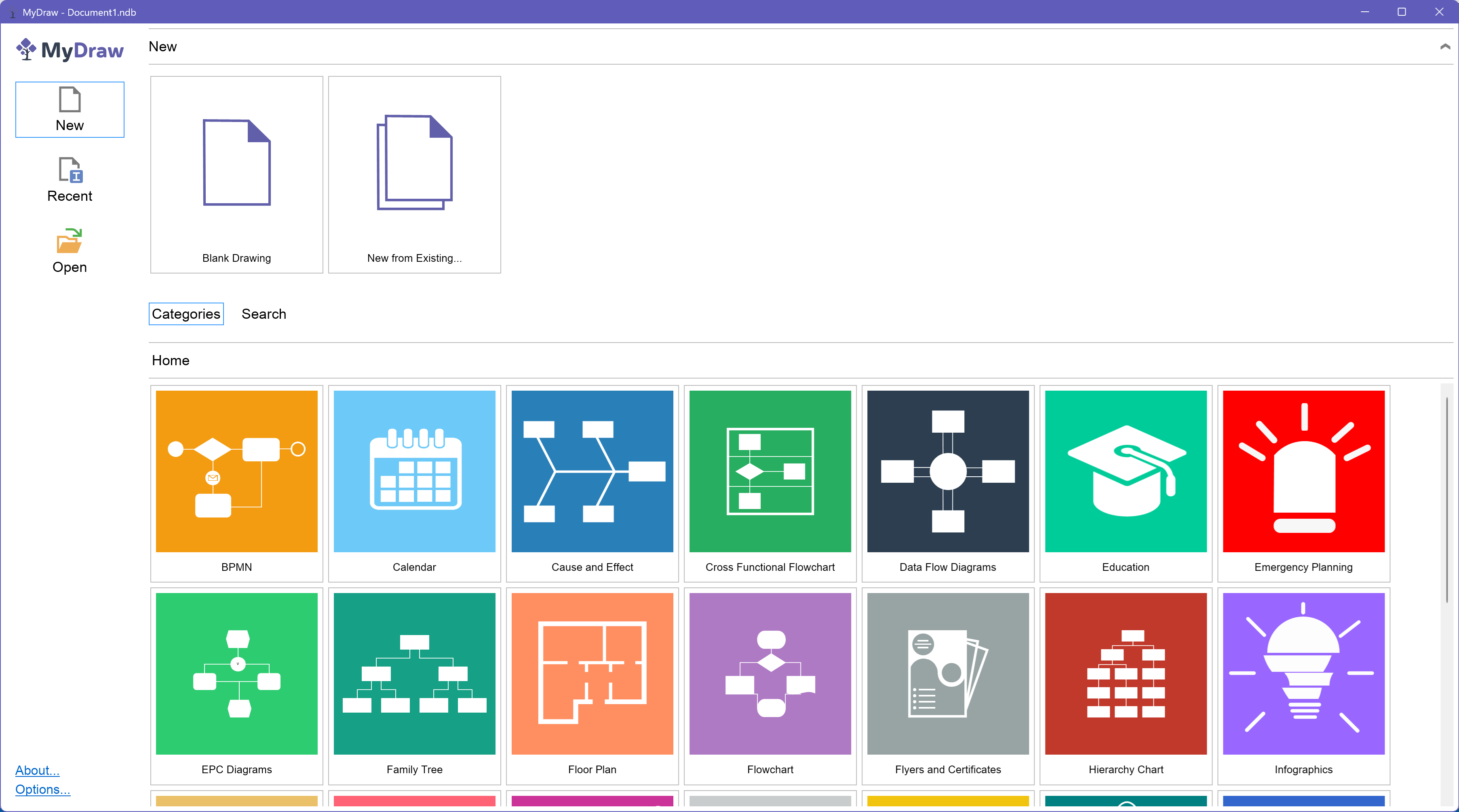
img. 1. MyDraw Start Screen - New Tab
New Tab
Recent Tab
From the Recent Tab you can quickly open a drawing you have recently worked on. You can pin/unpin and remove drawings from the recent documents list. The Recent Tab is an easy way to continue working an a file that you have recently edited, and saves you time in locating this file again.
The Recent Tab is only available in the desktop versions of MyDraw.
Open Tab
From the Open Tab lets you select an existing file from your computer or from the Cloud. Currently implemented are options to open files from the following cloud providers:
- Google Drive
- Drop Box