The Selection Editor allows you to view and edit the properties of the currently selected page item or group of items, as shown in the following image:
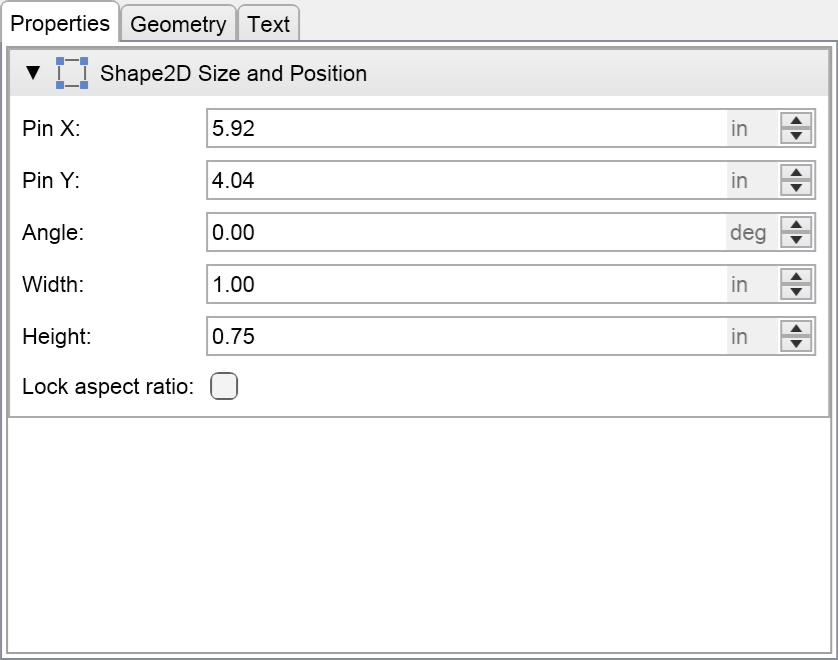
The Selection Editor is positioned by default on the right side of the Drawing View, as shown in the Main Screen topic.
The Selection Editor contains three tabs:
- Properties – displays the properties of the currently selected item or items.
- Geometry – displays geometry-related styling settings and controls.
- Text – displays text formatting and text-related styling settings.
When a single item is selected, the Properties tab displays a Size and Position section containing properties related to the size and positioning of the selected item.
- For 1D shapes, the section displays the BeginX, BeginY, EndX, and EndY coordinates of the shape.
- For 2D shapes, the section displays the PinX, PinY, Angle, Width, and Height properties of the shape.
You can change the Width and Height properties independently. To preserve the original aspect ratio of the shape while resizing, enable the Lock aspect ratio check box.
When multiple items are selected, the selection is treated as a single, temporarily grouped 2D shape. As a result, it exposes the same properties as a 2D shape. However, changing these properties scales and transforms the temporary group as a whole.
For horizontal and vertical guidelines, the Properties tab contains only the guideline coordinate – X for vertical guidelines and Y for horizontal guidelines.
The Geometry tab contains styling commands that modify the Fill, Stroke, Shadow, Begin Arrowhead, and End Arrowhead styling of the currently selected objects.
The Text tab, similarly to the Geometry tab, contains styling commands related to text formatting and appearance for the selected items, such as Text Format, Text Fill, Text Background Fill, Text Stroke, and Text Shadow.