The Zoom and View Bar allows you to quickly zoom the drawing view and also provides feedback about the current zoom level. It is located in the bottom-right corner of the MyDraw Main Screen and is illustrated in the following image:
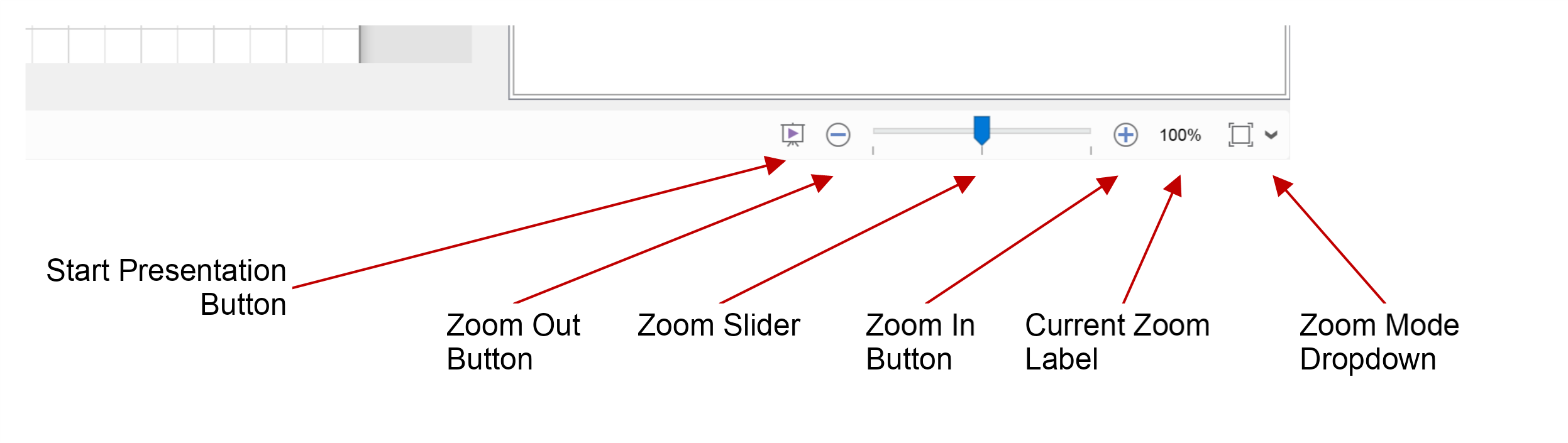
The Zoom and View Bar has the following controls:
Start Presentation Button - switches the MyDraw application to Presentation Mode. In Presentation Mode you can navigate through the foreground pages and the bookmarks in them.
Zoom Out Button - zooms out the page (makes objects smaller). Press and hold this button to repeatedly zoom out.
Zoom In Button - zooms in the page (makes objects larger). Press and hold this button to repeatedly zoom in.
Zoom Slider - drag the slider thumb to interactively zoom the page.
Current Zoom Label - displays the page current zoom percentage. Clicking the zoom level label opens the Zoom dialog:
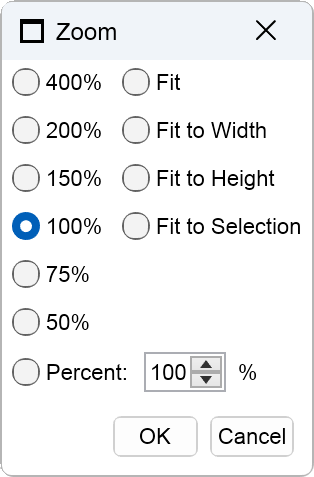
From this dialog you can zoom the page to either a fixed zoom percentage, or to a dynamically calculated zoom percentage that follows some logic such as Fit to Width, Fit to Height etc.
Zoom Mode Dropdown - from this drop-down you can change the page zoom mode. It allows you to select one of the following options:
- Normal - this is the default zoom mode of the page. The page automatically switches to this mode when you manually zoom the page.
- Fit – scales the page so that it fits completely within the drawing view window.
- Fit to Width – scales the page to fit the width of the drawing view. Vertical scrolling is available if needed.
- Fit to Height – scales the page to fit the height of the drawing view. Horizontal scrolling is available if needed.