The Drawing Explorer window provides a comprehensive, hierarchical overview of every element within your MyDraw drawing, as shown in the following image.
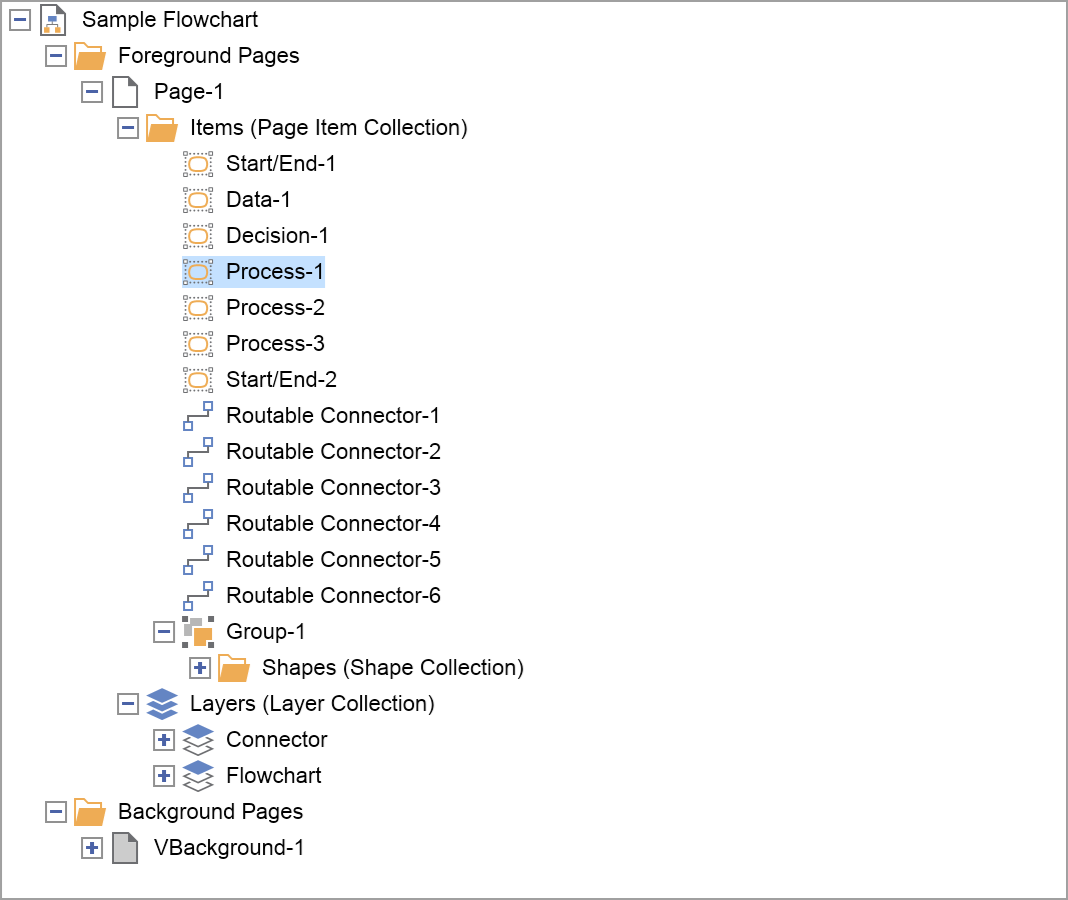
img. 1 - Drawing Explorer
The Drawing Explorer is positioned by default on the right side of the Drawing View, as shown in the Main Screen topic.
When you create a new drawing or open an existing one, the Drawing Explorer is automatically updated to display the elements of that drawing.
The root element always represents the drawing – in our example, Sample Flowchart. Below the drawing element, there are always two folders – one for the Foreground pages and one for the Background pages of the drawing. To easily distinguish between foreground and background pages, these elements have different icons – note that the icon for Page-1 is filled with white color, while the icon for VBackground-1 is filled with gray color. Clicking on a page in the Drawing Explorer automatically opens that page in the Drawing View.
Each page also has two subfolders – Items and Layers, containing the page items (such as shapes, guidelines, connectors, etc.) and layers, respectively. Clicking on a page item automatically selects that item in the Drawing View and also ensures that the item is visible within the view. Different types of items (shapes, groups, routable connectors, etc.) also have different icons so that you can easily distinguish between them.
There is a specific context menu associated with each type of element, which is displayed when you right-click on the element.